Fix n8n "ECONNREFUSED 127.0.0.1" in Docker: localhost, host.docker.internal & SSRF
Fix "connect ECONNREFUSED 127.0.0.1" in n8n's HTTP Request node when n8n runs in Docker: localhost vs host.docker.internal, the Linux host-gateway fix, 0.0.0.0 binding, and n8n's SSRF block.
On this page
You point an n8n HTTP Request node at an API running on your own machine — http://localhost:3000, say — and the node fails with:
connect ECONNREFUSED 127.0.0.1:3000The API is definitely running. curl http://localhost:3000 works fine from your terminal. So why can’t n8n reach it?
Because when n8n runs in Docker, localhost doesn’t mean your computer. This guide explains why, then gives you the exact fix for your setup — Docker Desktop, Linux, Docker Compose, or n8n Cloud — plus two less obvious causes that produce the same error even after you’ve “fixed” the URL.
Quick answer
| Where is the service n8n needs to call? | Use this URL |
|---|---|
| On your machine, and you use Docker Desktop (Mac/Windows) | http://host.docker.internal:3000 |
| On your machine, and you run Docker on Linux | http://host.docker.internal:3000 plus extra_hosts (see below) |
| In another container in the same Compose file | http://<service-name>:<container-port>, e.g. http://api:3000 |
| On your machine, and you use n8n Cloud | A tunnel’s public URL — Cloud can’t reach your machine |
If that fixes it, you’re done. If it doesn’t, keep reading — the service’s bind address or n8n’s SSRF protection is probably the culprit.
Why “localhost” fails inside Docker
ECONNREFUSED has a precise meaning: n8n reached a host, but nothing was listening on that port, so the connection was actively refused. It’s not DNS, it’s not a timeout, and it’s usually not a firewall.
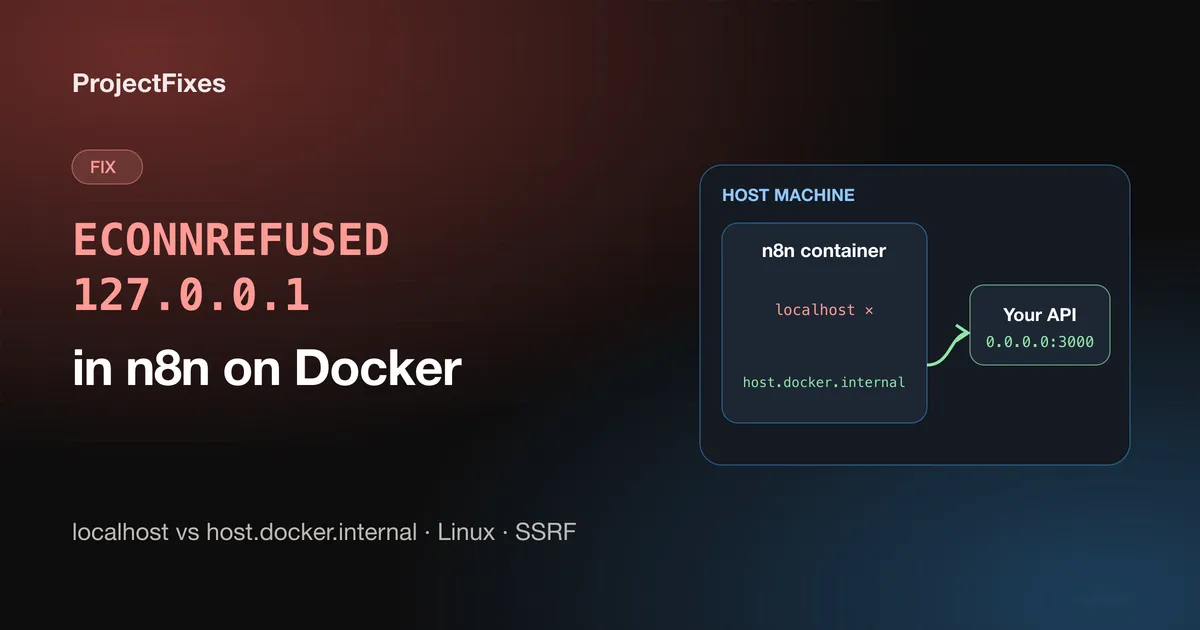
Every Docker container has its own network namespace, which means its own localhost. Inside the n8n container, localhost and 127.0.0.1 point at the n8n container itself. When the HTTP Request node calls http://localhost:3000, it’s knocking on port 3000 of the n8n container — where nothing is listening. Refused.
Your terminal’s curl works because it runs on the host, where localhost really is your machine. Same URL, two different computers.
Fix 1: Docker Desktop (macOS and Windows)
Docker Desktop provides a special hostname that resolves to your host machine from inside any container. Replace localhost with it in the HTTP Request node:
http://host.docker.internal:3000No other configuration is needed.
Fix 2: Docker on Linux
On Linux, host.docker.internal doesn’t exist by default. You add it with Docker’s host-gateway value, which maps the name to the host’s address on the Docker bridge network.
With Docker Compose:
       services:
  n8n:
    image: n8nio/n8n
    ports:
      - '5678:5678'
    extra_hosts:
      - 'host.docker.internal:host-gateway'
With docker run:
       docker run -d --name n8n -p 5678:5678 \
  --add-host=host.docker.internal:host-gateway \
  -v n8n_data:/home/node/.n8n \
  n8nio/n8n
Recreate the container (docker compose up -d) and use http://host.docker.internal:3000 in the node.
Still refused on Linux? Check what the service is bound to
This is the step most guides miss. Many dev servers listen on 127.0.0.1 only by default. Traffic from a container doesn’t arrive on the host’s loopback interface — it arrives on the Docker bridge interface. So the container reaches your machine correctly, and your machine refuses the connection because the service isn’t listening on that interface. Same error, different cause.
Check the bind address on the host:
ss -ltnp | grep 3000If you see 127.0.0.1:3000, restart the service listening on all interfaces (0.0.0.0:3000) or on the Docker bridge IP. For example:
       # Node / Vite-style dev servers
npm run dev -- --host 0.0.0.0

# Python (uvicorn)
uvicorn app:app --host 0.0.0.0 --port 3000

# Python's built-in server
python3 -m http.server 3000 --bind 0.0.0.0
Listening on 0.0.0.0 exposes the service on every network interface, so make sure your firewall doesn’t expose that port to the internet — or bind to the bridge address (typically 172.17.0.1) instead.
Fix 3: The service runs in another container
If the API is another service in the same docker-compose.yml, don’t go through the host at all. Compose puts services on a shared network where each service name is a hostname:
       services:
  n8n:
    image: n8nio/n8n
    ports:
      - '5678:5678'
  api:
    image: my-api:latest
    # no "ports:" needed for n8n to reach it
In the HTTP Request node, use http://api:3000 — the service name and the port the app listens on inside its container. The published (left-hand) port in a ports: mapping is only for access from the host; container-to-container traffic ignores it. Using the wrong one of the two is a very common cause of ECONNREFUSED.
If the two containers are in different Compose projects, put them on a shared external network so they can resolve each other by name.
Fix 4: n8n Cloud
Workflows on n8n Cloud run on n8n’s infrastructure. They can never reach localhost or host.docker.internal on your laptop. Expose the local service through a tunnel (Cloudflare Tunnel, ngrok and similar) and use the tunnel’s public HTTPS URL in the node — ideally with authentication on the tunnel, since that URL is reachable from the internet.
“It works with 127.0.0.1 but not localhost”
A related case that also shows up as ECONNREFUSED: on Node.js 17 and later, localhost resolves to the IPv6 address ::1 before 127.0.0.1. If the target only listens on IPv4, the IPv6 attempt is refused, and the IPv4 fallback doesn’t always kick in.
When n8n and the target service genuinely share a network namespace — for example, both run directly on the same host without Docker — use the explicit IPv4 address:
http://127.0.0.1:3000The other error: “The request was blocked because it resolves to a restricted IP address”
If you fixed the hostname and now see this message instead, n8n’s SSRF protection is working as designed. With N8N_SSRF_PROTECTION_ENABLED=true, the HTTP Request node refuses to call private networks, loopback and link-local addresses — which includes host.docker.internal (a private bridge address) and most Compose service IPs.
SSRF protection is off by default, but it’s worth enabling on any instance where other people can build workflows. It stops a workflow (or an AI agent) from being used to probe your internal network or read cloud metadata credentials. Instead of turning it off, allow exactly the internal targets you need — allow entries take precedence over the block list:
       services:
  n8n:
    image: n8nio/n8n
    extra_hosts:
      - 'host.docker.internal:host-gateway'
    environment:
      - N8N_SSRF_PROTECTION_ENABLED=true
      # Allow specific internal hostnames (a leading *. wildcard is supported)
      - N8N_SSRF_ALLOWED_HOSTNAMES=host.docker.internal,api
      # ...or specific ranges
      # - N8N_SSRF_ALLOWED_IP_RANGES=10.0.1.0/24
Keep the default keyword in N8N_SSRF_BLOCKED_IP_RANGES so you keep n8n’s built-in block list. If you’re preparing for n8n 3.0, note that the default list grows to include 100.64.0.0/10 — the range used by Tailscale and carrier-grade NAT — which we cover in the n8n 3.0 upgrade guide.
Verify the fix from inside the container
Don’t debug by re-running the workflow. Test the exact URL from inside the n8n container — if this works, the HTTP Request node will too:
docker exec -it n8n wget -qO- http://host.docker.internal:3000/health(Replace n8n with your container name from docker ps.) Reading the result:
- Output returned → networking is fine; check the node’s URL, method and auth.
Connection refused→ the host is reachable but nothing is listening there. Check the port and the service’s bind address.bad addressor “unable to resolve host” → the hostname doesn’t resolve. On Linux, addextra_hosts; for Compose, check the service name.- Hangs, then times out → a firewall is dropping traffic between the Docker bridge and the host.
Checklist
- Replace
localhostwithhost.docker.internal(host service) or the service name (another container). - On Linux, add
extra_hosts: ["host.docker.internal:host-gateway"]. - Make sure the target listens on
0.0.0.0, not only127.0.0.1. - Between containers, use the container port, not the published one.
- If you see “restricted IP address”, allow-list the target with
N8N_SSRF_ALLOWED_HOSTNAMES. - Confirm with
docker exec … wgetbefore touching the workflow again.
Related: moving to Docker because of n8n 3.0? Read n8n 3.0 breaking changes: how to upgrade safely. Looking for things to automate once your API calls work? See 10 AI agent use cases in n8n.
Keep reading
-
 Automation
 n8n 3.0 Breaking Changes: How to Upgrade Without Breaking Your Workflows
Every n8n 3.0 breaking change that can stop your workflows — removed nodes, new env var defaults, storage path changes — plus a safe step-by-step Docker upgrade and rollback plan.
n8nAutomationDockerRead article -
 AI Automation
 10 Insane AI Agent Use Cases in n8n
Discover 10 powerful AI agent use cases built on n8n, from meeting managers to compliance auditors, that save time and cut busywork.
n8nAI AgentsAutomationRead article -
 AI Automation
 Beyond Retrieval: Building Self-Healing AI Agents with Agentic RAG and MCP
Why traditional RAG breaks in production and how Agentic RAG with MCP enables reliable, self-healing AI systems.
AIAutomationAgenticRead article -
 AI Automation
 The Agentic Revolution: How Autonomous AI Agents Are Reshaping Business and Blockchain in 2025
An in-depth look at the breakthroughs, business transformations, and blockchain integrations defining the new era of AI.
artificial-intelligenceai-agentsautomationRead article